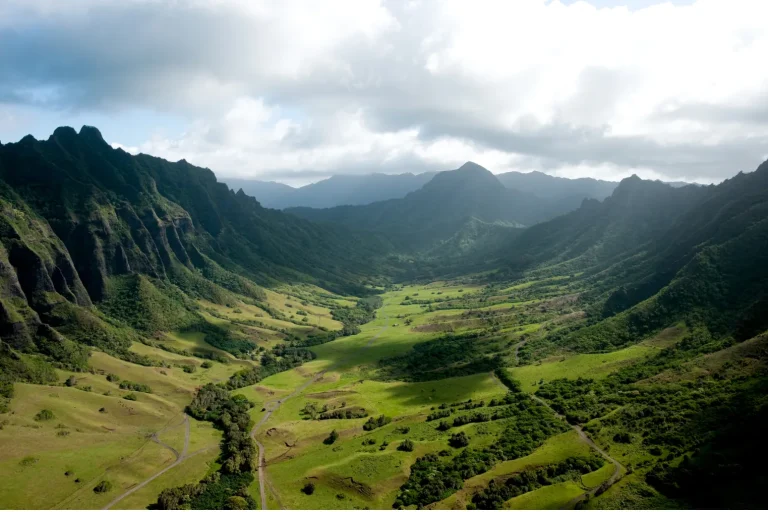
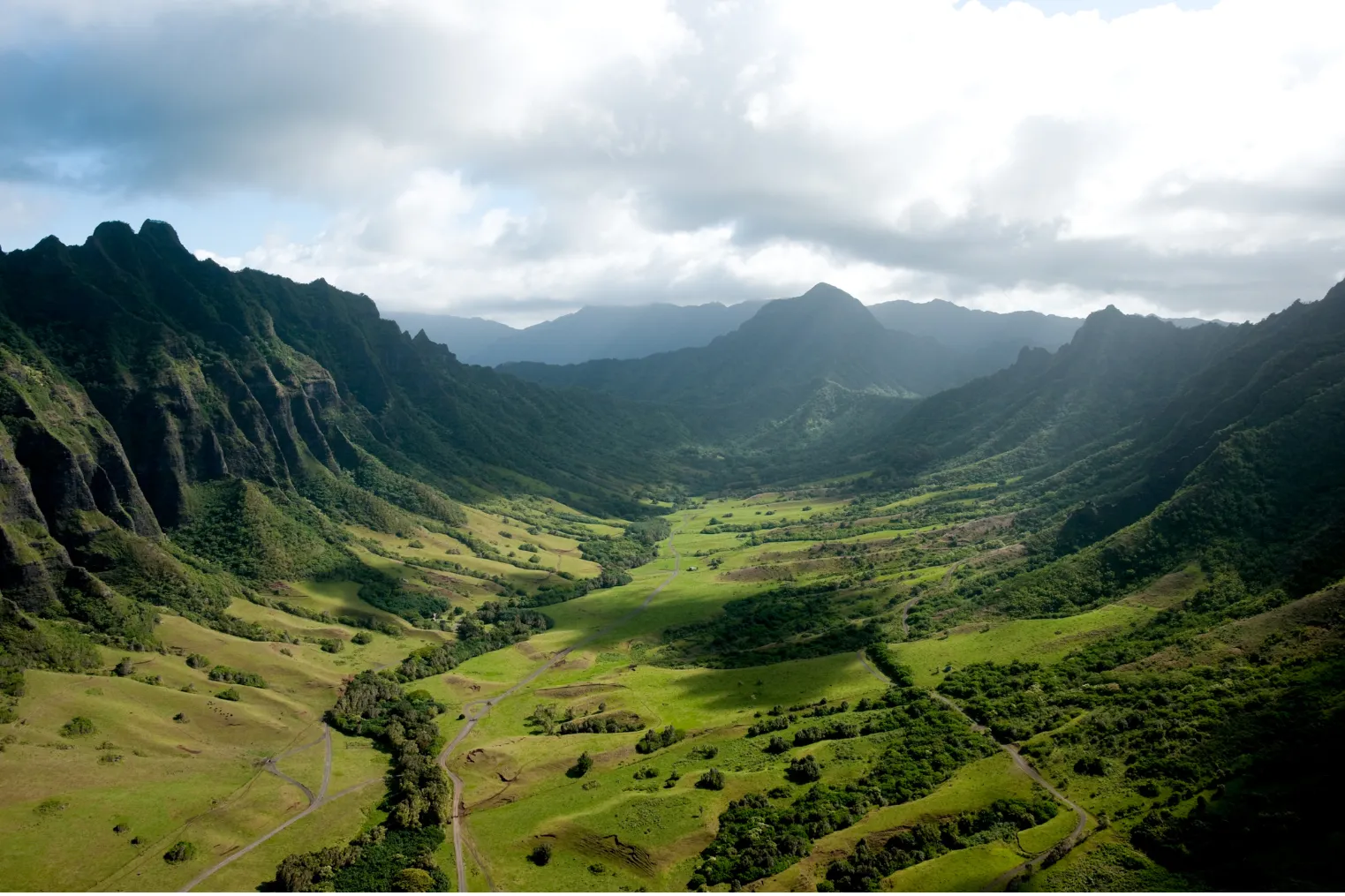
Is the theory true that Hawaii does half the work for your photos, and your iPhone only needs a little help? You’ll find out fast when noon sun flattens a green ridge or a sunset turns the beach into glare. A few smart settings can hold the lava’s texture, keep the horizon straight, and save the pink sky you actually saw. The trick starts with what you change before you tap the shutter.
Key Takeaways
- Turn on Grid and Level to keep horizons straight across beaches, cliffs, and volcanic ridgelines.
- Enable Smart HDR or Auto HDR, then lower exposure about one stop for bright sand, surf, or sunsets.
- Use optical zoom instead of digital zoom to keep distant waterfalls, crater rims, and shoreline details sharp.
- For twilight, waterfalls, or night skies, use Night Mode with a tripod and a 2 to 5 second timer.
- Shoot RAW or ProRAW when available, wipe the lens often, and review photos for smudges or exposure issues.
Best iPhone Settings for Hawaii Scenery
When Hawaii puts bright surf, dark lava, and sharp mountain ridges in the same frame, your iPhone settings matter more than you’d think. Turn on Grid so your horizon stays level across beaches, cliffs, and crater rims. For iPhone Photography after dusk, use Night Mode with a tripod or stable Platypod, especially for Milky Way skies or blue hour coastlines. On iPhone 15 Pro, you can push exposure past 10 seconds and keep blur controlled. Enable RAW capture when ProRAW is available, since lava glow and shadowy valleys need more editing room later. For moving water or molten edges, shoot continuous frames around 1/4 to 1 second, underexpose slightly, and use a timer. Wipe your lens often, turn off Live Photos, and stick with optical zoom. For shoreline landscapes, the best time of day on Oahu often brings golden light and calmer seas that make exposure easier to manage.
Use iPhone Settings for Bright Hawaii Days
Because Hawaii’s midday light can jump from blazing surf to deep valley shade in a single frame, you’ll get better results if you set your iPhone up before you start shooting. Turn on Smart HDR, or leave Auto HDR on, so bright skies keep texture while shaded palms and lava rock hold detail. Switch on Grid and the Level to straighten horizons along beaches and ridgelines. Tap to focus, then drag the sun icon down about one stop when white sand or surf looks intense. If your phone supports ProRAW or RAW, use it for more editing room. Also, make sure flash stays off so the camera can keep ISO low and shutter speeds fast. At Makapuu Lookout, these settings can help balance bright sunrise skies with darker coastal cliffs and foreground detail. Keep an eye on exposure shifts throughout the day.
Capture Hawaii Sunsets on iPhone
As the sun drops toward the Pacific, your iPhone can catch Hawaii’s sunset color beautifully if you steady the shot and stay a step ahead of the light. Turn on Grid so coastlines and ridgelines stay level. Then tap the brightest sky, or a dark palm silhouette, and slide down about one stop.
If you’re exploring Oahu Circle Island Tour routes, plan to reach your photo stop before sunset so you have time to compose while the light is still changing. Keep shooting from golden hour into blue hour. You’ll be able to capture warm clouds, glowing lava edges, and cooler twilight in separate frames. On iPhone 15 Pro, use Night or Sunset mode and brace your phone for longer exposures. A small tripod, Platypod, or timer helps with getting a sharp result. Try Live to Long Exposure for silky water and crisp rocks. Your phone’s aperture of f. won’t change, so timing and stability do the heavy lifting for you.
Fix Blurry or Overexposed Hawaii Photos
Even the best Hawaii light can turn against you fast if your lens is salty or your phone shifts a hair in the wind.
Hawaii light turns unforgiving fast when salt hits your lens or the wind nudges your phone off perfect.
- Turn on Grid and use the level so the horizon stays straight. A tilted ocean can fake blur and steal the perfect shot.
- Wipe the lens often with absorbent wipes. Salt spray, sunscreen smudges, and fingerprints soften detail, so review each frame before you leave.
- To reduce harsh reflections off water and sand, change your angle or shade the lens to avoid glare before you shoot.
- For low light, brace your iPhone on a tripod, Platypod, or a mini rig with a ball head. Use Night mode plus a 2 to 5 second timer to make shake disappear.
- Protect water and lava glow. Tap to set exposure, drag brightness down one stop, and watch the histogram. For surf, try Live to Long Exposure.
Frequently Asked Questions
Can I Shoot Hawaii Scenery in RAW on All iPhone Models?
No, you can’t shoot RAW on every iPhone using Apple’s Camera app. RAW support varies with Model differences: ProRAW availability starts on iPhone 12 Pro and newer Pro models, while other iPhones need third-party apps.
What Accessories Help Stabilize iPhone Long Exposures in Hawaii?
You’ll stabilize iPhone long exposures with tripod adapters, a compact tripod, waterproof mounts, and a bean bag. Add a secure phone clamp, anchor your setup, use the timer or remote, and wipe spray off lenses.
Should I Disable Flash When Photographing Hawaii Landscapes at Night?
Yes, turn off flash for moonlit, misty Maui nights; you’ll get ambient preservation, avoid red eye, and preserve stars. Use Night mode or long exposures instead, because flash flattens foregrounds and wrecks Hawaii’s natural nocturnal glow.
How Can I Quickly Access Exposure Details After Taking a Photo?
Open Photos, select your image, and tap info to see shutter speed, ISO, and format. You’ll spot Night mode exposure time there too. For data, use an EXIF app to view histogram and adjust exposure.
What’s the Safest Way to Carry My iPhone While Exploring Hawaii?
Play it safe: carry your iPhone in a waterproof pouch with a wrist tether, and add a neck strap near surf. You’ll keep it handy, protected from Hawaii’s surprises, and less likely to take swim.
Conclusion
With a few smart settings, you’ll come home with Hawaii photos that actually match the view. Imagine this: you stop at Waimea Canyon after lunch, switch on Grid, lower exposure a touch, and catch the red cliffs before the trade winds shove you back to the car. Later, your sunset shot still holds the gold in the clouds and detail in the lava rocks. That’s the goal. Less guessing, more seeing, and fewer salty thumbprints on the lens.